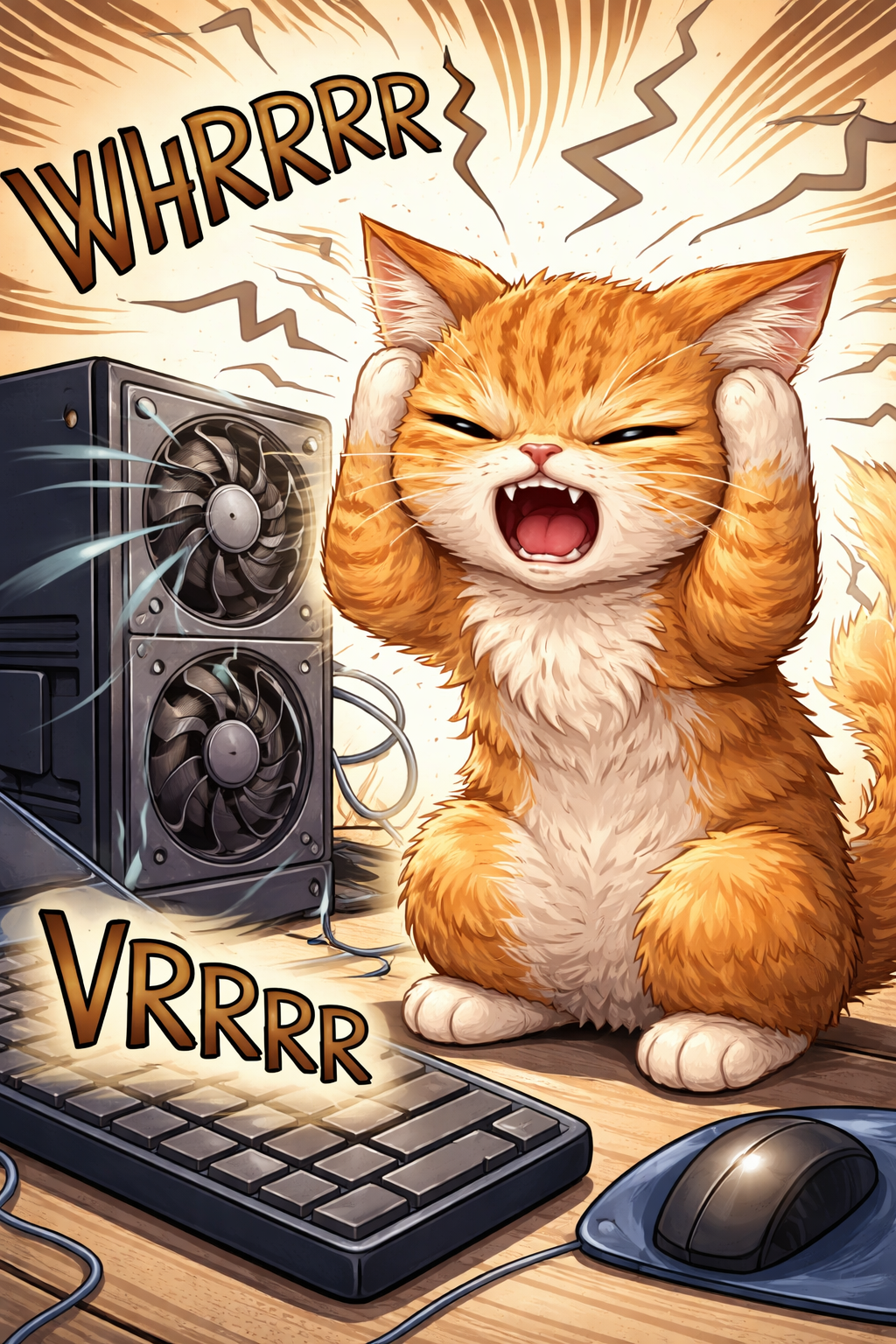
컴퓨터 팬소음 원인과 해결 방법
Causes and Solutions for Computer Fan Noise
"컴퓨터에서 갑자기 시끄러운 소리가 나기 시작했나요? 팬소음의 원인은 크게 4가지로 나뉩니다.
(1) 케이스 팬, (2) 파워 팬, (3) 그래픽카드 팬, (4) CPU 팬 각각 원인과 해결 방법이 다릅니다."
"Is your computer suddenly starting to make loud noises? The causes of fan noise can be broadly divided into 4 categories: (1) Case fan, (2) Power supply fan, (3) Graphics card fan, (4) CPU fan — each with different causes and solutions."
컴퓨터에서 굉음-소음으로 입고되는 컴퓨터가 가끔 있습니다. 근데, 댁에서는 소리가 나는데, 매장에 가져오시면 소리가 안나는 컴퓨터도 있습니다. 그래서 가장 좋은 건, 댁에서 소리 날 때, 팬을 하나씩 잡아가면서 원인을 찾아보시는 게 좋습니다.
"Occasionally, computers are brought in to our shop with loud or unusual fan noises. However, some computers make noise at home but go completely silent once they're brought into the shop. That's why the best approach is to check at home while the noise is happening — press down on each fan one by one to identify which one is causing the problem."
[ 혼자서 팬소음 원인 찾는 방법은 아래의 동영상 참조 ]
Please refer to the video below on how to find the cause of fan noise on your own
전면 팬은 전면 배젤에 가려진 상태라서, 팬 회전축을 손으로 잡기가 어려우니깐, 부드러운 "종이(부도체)"를 천천히 끼워서 팬 회전 속도를 낮춰 보세요. 회전하는 물체에 한 번에 멈추면, 팬 날개가 깨질 수도 있으니, 천천히 회전을 멈춰 세워서, 팬 소음을 확인하는 게 중요합니다.
Since the front fan is hidden behind the front bezel, it is difficult to grab the fan's rotation axis by hand. Instead, slowly insert a soft piece of paper (a non-conductor) to reduce the fan's rotation speed. If you stop a rotating object all at once, the fan blades may break, so it is important to slowly bring the fan to a stop and then check whether the noise is gone.
(1) 케이스 전면 팬 소음 - 케이스가 연식이 오래되면서 이렇게 팬소음이 발생됩니다.
(1) Case Front Fan Noise - This type of fan noise occurs as the case gets older over the years.
한 개 케이스 팬에서 소음이 발생되면, 다른 팬도 비슷한 시기에 팬 소음이 발생됩니다. 시기에 생산된 공산품의 품질은 비슷합니다.
If one case fan starts making noise, the other fans tend to follow around the same time. Products manufactured in the same period tend to have similar quality and lifespan.
동영상 서비스가 종료되어 해당 콘텐츠를 재생할 수 없습니다.
팬 소음 원인 찾는 방법은 케이스 팬 날개의 회전을 멈춰보세요.
To find the cause of fan noise, try stopping the rotation of the case fan blades.
케이스의 후면팬과 (3) 그래픽카드 쿨링팬은 (팬 날개에 손가락 넣지 말고) 팬 회전하는 중심부를 손가락으로 누르면 됩니다.
For the case rear fan and (3) graphics card cooling fan, press the center of the rotating fan with your finger (do not insert your finger into the fan blades).
동영상 서비스가 종료되어 해당 콘텐츠를 재생할 수 없습니다.
케이스 팬은 회전하는 중심부를 손가락으로 잡아보시고, (4) CPU 팬은 굉장히 날카로운 경우가 있는데, 손가락은 다칠 수 있습니다. 그래서, 종이를 비스듬한 방향으로 넣으면서, "천천히 회전 속도를 낮추는 방법"으로 팬 회전 속도를 낮춰서 팬소음의 원인을 확인해 볼 수 있습니다.
For the case fan, press the center of the rotating fan with your finger. As for the (4) CPU fan, it can sometimes be very sharp and may injure your finger. Therefore, you can slowly insert a piece of paper at an angle to gradually reduce the rotation speed, and check whether the CPU fan is the cause of the noise.
(주의) 초고속 회전하는 팬에는 적합하지 않은 확인 방법입니다. 서버 컴퓨터는 케이스 팬과 CPU 팬이 엄청 난 속도로 빠르게 회전하는 팬은 이렇게 멈추지 않고도 눈으로 봐도 회전하는 게 보이며, 동작 소음도 엄청나기 때문에 눈과 귀로 판별하시면 됩니다.
(Caution) This method is not suitable for fans that rotate at extremely high speeds. Server computer case fans and CPU fans spin at incredibly fast speeds — you can actually see them spinning with the naked eye and the noise they produce is enormous. In such cases, simply use your eyes and ears to identify the source of the noise.
빠르게 회전 운동하는 물체를 강제로 멈출 때, 충격으로 날개가 깨지는 경우가 생길 수 있습니다. 날개가 깨지면, 사방으로 파편이 튈 수 있기 때문에 안전이 제일 중요합니다. 너무 빠르게 회전하는 팬은 손가락 또는 딱딱한 물체를 끼우며 선풍기 날개 깨지듯 산산조각날 수 있습니다.
When forcibly stopping an object that is rotating at high speed, the impact can cause the blades to shatter. If the blades break, fragments can fly in all directions, so safety is the top priority. Inserting a finger or a hard object into a fan that is spinning too fast can cause the blades to shatter into pieces, just like a electric fan blade breaking apart.
동영상 서비스가 종료되어 해당 콘텐츠를 재생할 수 없습니다.
보통의 경우에는 팬이 회전하면서 회전축의 떨림이 생겨서 케이스에 진동으로 나는 소리가 제일 많은 거 같고요. 그다음에는 컴퓨터의 케이블(전면 패널선, 사타 케이블 등)이 회전하는 날개랑 부딪히면서 나는 소리가 있습니다.
In most cases, the most common cause of noise seems to be vibration transferred to the case due to wobbling in the fan's rotation axis. The next most common cause is the sound produced when computer cables (such as front panel wires, SATA cables, etc.) come into contact with the spinning fan blades.
아래의 소음은 전선이 팬 날개에 걸리는 소리입니다.
The noise below is the sound of a wire caught in the fan blades.
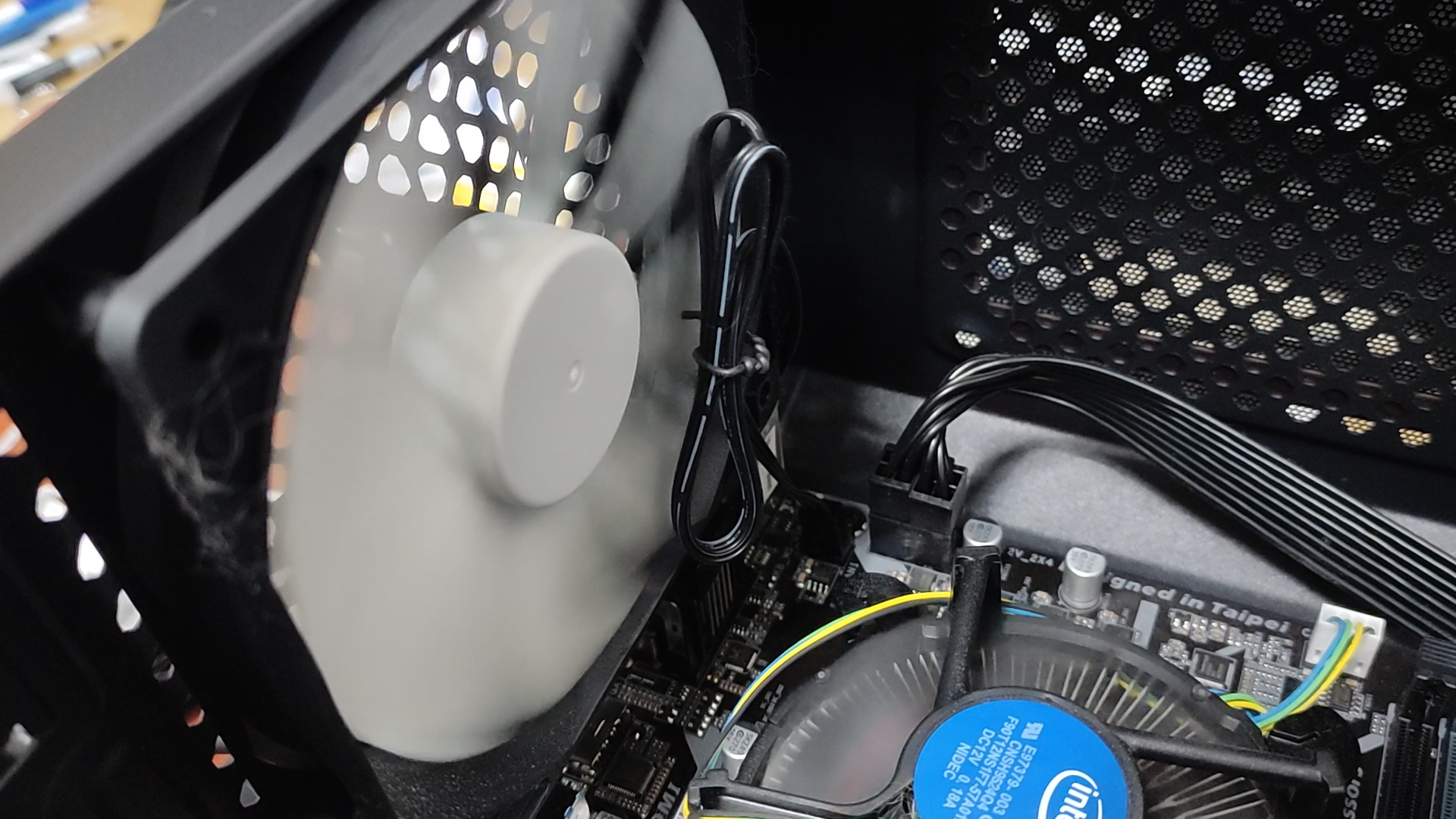
선에 걸리면 소리가 크기 때문에, 시끄러워서 컴퓨터 쓰기가 어렵죠? 혼자서 뜯어보지를 않아서 못 찾는 것이고 전선이 팬 날개에 걸리는 것이 보이기 때문에 케이스 커버만 열면, 컴퓨터 소음의 원인을 찾아서 해결할 수 있습니다. 팬 날개에 부딪히는 전선을 케이블 타이로 묶으면 됩니다.
When a wire gets caught in the fan, it makes a loud noise that makes it very difficult to use the computer. The reason most people cannot find it is simply because they have not opened up the case themselves. Since you can clearly see the wire caught in the fan blades, you can find and fix the cause of the noise just by opening the case cover. Simply bundle the wire that is hitting the fan blades with a cable tie.
동영상 서비스가 종료되어 해당 콘텐츠를 재생할 수 없습니다.
선정리는 케이블 타이(플라스틱)가 제일 좋지만, 집에 없다면, "빵끈, 빨래 집게"이라도 이용해서 임시로 묶어두는 방법도 있습니다. 빵끈은 내부가 철사로 만들어진 것이라서 빵끈의 끝부분이 회로랑 닿지 않게 관리할 필요가 있습니다. 드문 경우겠지만, 합선 날 수도 있기에 가능하면, "플라스틱 - 케이블 타이"나 "선정리용 찍찍이" 등 전기가 안 통하는 플라스틱류의 절연체로 컴퓨터 선정리 하는 것이 좋습니다. ("고무줄"도 오래되면 삭으면서 끊어집니다. 케이블 타이도 오래되거나 건조하거나 햇빛을 많이 받으면, 혼자 끊어지기는 합니다.)
Cable ties (plastic) are the best option for cable management, but if you do not have any at home, you can temporarily bundle the cables using a bread tie or a clothespin. Bread ties have a wire inside, so you need to make sure the ends do not touch any circuit boards, as there is a rare chance of a short circuit. If possible, it is best to use plastic insulators such as cable ties or velcro cable straps to manage cables inside your computer. Rubber bands are not recommended either, as they deteriorate and snap over time. Cable ties can also break on their own if they are old, dry, or exposed to a lot of sunlight.
(2) 파워서플라이 팬소음 사례
(2) Power Supply Fan Noise Cases
컴퓨터를 사용하면, '흐응, 흐흥' 코 고는 소리가 주기적으로 나서 시끄러워요. 층간 소음 유발
When using the computer, it makes a periodic snoring-like sound — "hmmm, hmmm" — which is quite loud and can even disturb neighbors in apartment buildings.
아래의 컴퓨터는 파워서플라이에 내장된 팬이 불량입니다. 회전을 못하는 경우가 많고 회전하더래도, 아래와 같은 소음이 발생됩니다. 파워를 분해하고 청소하고 기름칠해서 사용하는 방법도 있지만, 안정적이지 않은 제조사의 파워서플라이라서 개인적인 생각은 팬 수리보다는 파워서플라이를 교체하는 방법이 좋아 보입니다.
The computer below has a faulty fan built into the power supply. In many cases the fan fails to spin at all, and even when it does, it produces the noise described below. While it is possible to disassemble the power supply, clean it, and lubricate it for continued use, since this is a power supply from an unstable manufacturer, my personal recommendation would be to replace the power supply rather than repair the fan.
동영상 서비스가 종료되어 해당 콘텐츠를 재생할 수 없습니다.
(3) 그래픽카드 팬 소음 확인하는 방법
(3) How to Check for Graphics Card Fan Noise
https://youtube.com/shorts/TJlZ2vGuCt0?si=lGtZWYfgZ9RANlA1
(4) CPU 팬 소음 확인 방법
(4) How to Check for CPU Fan Noise
https://youtube.com/shorts/DoytYBAENX8?si=YSG1jPJQhzFdY2tD
컴퓨터 팬의 모터가 회전하면서 발전 시키는 경우도 있기 때문에, 가능하다면, 청소할 때, 팬 날개가 돌아가지 않게 고정한 상태에서 청소하는 게 좋습니다. 팬을 빨리 돌리는 게 재밌기는 하지만, 컴퓨터 부품은 작은 전류에도 이상이 생길 수 있기 때문에, 안전하게 작업을 진행하는 것이 좋지 않을까 싶습니다.
Since the motor inside a computer fan can generate electricity as it spins, it is best to clean the fan while keeping the blades fixed in place so they do not rotate. ~~Spinning the fan blades fast can be fun,~~ but since computer components can be damaged even by a small electric current, it is advisable to work carefully and safely.
팬에서 역으로 회로로 들어오는 전기를 차단하는 기능이 메인보드에 있다고는 들었지만 그렇다고 할지라도 컴퓨터 팬 청소할 때는 고속 회전을 시키는 것보다 팬을 잡고 청소하는 편이 안전합니다. 고속 회전하는 팬의 날개와 컴프레샤 에어건과 충돌하면, 컴퓨터 케이스 팬의 날개는 쉽게 깨질 위험도 있습니다. (그라인더나 회전하는 모터 작업 유의 사항처럼) 파손된 날개는 어디로 튈지 알 수 없기 때문에 굳이 고속 회전 시키는 위험을 만들지는 않을 거 같습니다.
Although I have heard that motherboards have a built-in function to block electricity flowing back from the fan into the circuit, even so, it is safer to hold the fan still while cleaning rather than letting it spin at high speed. If a high-speed spinning fan blade collides with a compressor air gun, there is a real risk of the case fan blades shattering easily. Just as you would take precautions when working with a grinder or rotating motor, since a broken blade can fly off in any direction, there is really no reason to take the risk of letting the fan spin at high speed during cleaning.
고속 회전하는 팬에서 전기가 생산되는 걸 촬영한 영상인데요.
This is a video of electricity being generated by a high-speed spinning fan.
고속 회전 팬의 굉음이 오토바이처럼 재밌지만, 한 순간의 위험한 장난이 될 수도 있습니다.
안전하게 그릴(펜스)을 막아두고 확인했어야 했는데, 동영상 촬영할 때는 생각이 짧았습니다.
굉장히 빠르게 회전하기 때문에, 에어건의 쇠랑 날개로 부딪히면 플라스틱은 산산조각 나고
얼굴이 튈 수 있기 때문에 헬멧이나 페이스 가드 그리고 장갑을 착용하고 실험했어야 했을 거 같습니다.
The roaring sound of a high-speed spinning fan is exciting like a motorcycle, but it can turn into a dangerous situation in an instant. I should have covered it with a grill or fence before testing it, but I was not thinking clearly when filming the video. Since the fan spins extremely fast, if the metal tip of the air gun hits the blades, the plastic can shatter into pieces and fly toward your face. Looking back, I should have worn a helmet, face guard, and gloves before conducting the experiment.
[특이한 사례]
[Special Cases]
아래의 경우는 먼지 청소 후 전면 베젤의 먼지 필터가 이탈되면서 팬소음이 발생한 경우입니다.
The following case is an example of fan noise that occurred after dust cleaning, when the dust filter on the front bezel came loose and detached.
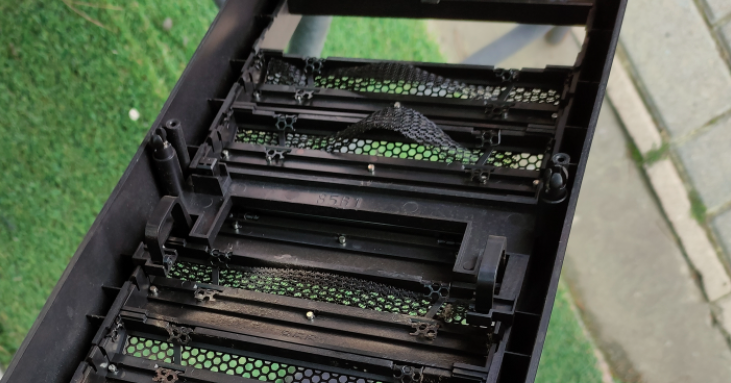
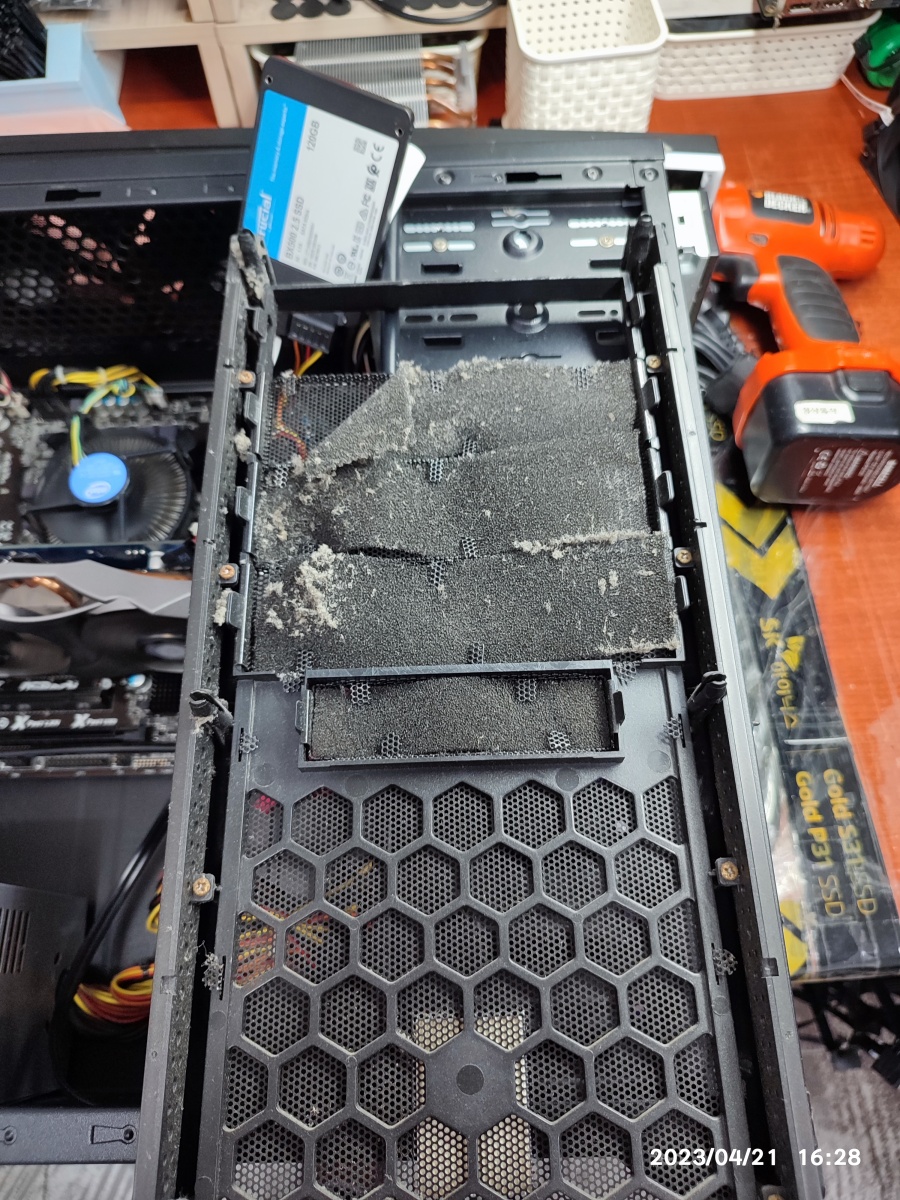

특이한 경우지만, 케이스 전면에 스펀지 형식의 먼지필터를 달아놓은 컴퓨터 케이스가 있습니다. 멀쩡하던 컴퓨터가 청소한 다음 전면 팬에 소음이 생겼다면, 확인해 볼 부분입니다. 컴프레샤의 강력한 바람 때문에 원래 자리에서 이탈해서 팬에 걸려서 소음이 생기는 경우가 있을 수 있습니다. (먼지 필터 있는 케이스가 잘 없으니깐 이런 경우는 드물기는 합니다.) 먼지 필터는 있으나마나 큰 차이가 없기 때문에, 제거하고 사용할 거 같습니다.
Although it is an unusual case, some computer cases have a sponge-type dust filter attached to the front panel. If a computer that was working fine suddenly develops front fan noise after cleaning, this is worth checking. The powerful air from a compressor can dislodge the filter from its original position, causing it to get caught in the fan and produce noise. (This is rare since not many cases come with dust filters.) Since the dust filter does not make much of a difference either way, it would probably be best to simply remove it and continue using the computer without it.
[ 팬 소음 관련 글 모음 ]
[ Collection of Articles Related to Fan Noise ]
https://m.blog.naver.com/dongtancom/220688028641
컴퓨터 케이스 고속 팬소음, 전압으로 조절하기
컴퓨터 소음 중 주요 원인으로는 케이스팬소음의 원인이 가장 많은데요. http://www.dongtancom.com/65 팬...
blog.naver.com
https://m.blog.naver.com/dongtancomputer/222586519736
컴퓨터 팬소음 (후면팬, 파워서플라이)에는 베어링 오일
컴퓨터 매장을 운영하는 입장에서는 베어링 오일 보충보다는 새 팬으로 교체하는 게 좋습니다. 일부 고장난...
blog.naver.com
https://m.blog.naver.com/dongtancom/222252161062
(나바켐) 액체 그리스 => 팬 베어링 분사
며칠 전에 미싱 오일을 작은 통에 나눠 담으면서, https://blog.naver.com/dongtancom/222247860120 "...
blog.naver.com
=> 위의 액체 그리스를 분사한 120mm 팬(2021년 2월)은 제 컴퓨터에 연결해서 사용하고 현재(2021년 10월)까지 잘 사용하고 있는데요. 축이 삐뚤어져서 진동이 있지만 케이스에 꽉 조여서 소음 없이 잘 사용하고 있습니다. 제 컴퓨터 케이스 옆면에 달아서 컴퓨터의 하드디스크 열을 식히는 용도로 사용하고 있습니다.
컴퓨터 진동 소음 https://m.blog.naver.com/dongtancom/223373894933
컴퓨터 떨림 진동
컴퓨터 떨림 진동 컴퓨터에 계속 진동이 생겨서, 어디서 진동이 울리지 확인해 봤더니, 그래픽카드 팬이 부...
blog.naver.com
황당 문의 전화 - 컴퓨터 때문에 층간 소음이 발생될 수 있나요?
An Absurd Inquiry Call — Can a Computer Cause Noise Complaints Between Floors? https://m.blog.naver.com/dongtancom/223365913380
"야간 컴퓨터 사용 아래층 층간 소음" 문의 전화
컴퓨터 때문에 층간 소음이 생길 수 있냐는 문의 전화를 받았습니다. 컴퓨터 수리는 아니고 그냥 단순 궁금...
blog.naver.com
[ 이어지는 글 ]
https://m.blog.naver.com/dongtancom/222623134181
컴퓨터 케이스 팬 소음에 WD40 뿌리기 (2개월 후 팬소음 재발)
WD40으로 처음으로 테스트를 해볼 글인데요. 실험 과정에서 조건 문제가 있었을 수도 있으니깐, 참고용으...
blog.naver.com
전면 팬의 스티커가 떨어져서 팬 회전하면 갈리는 소리 + 주사기로 오일 넣기
Front Fan Sticker Came Off Causing a Grinding Noise When the Fan Spins + Adding Oil with a Syringe
케이스 전면 팬소음 (베어링 오일 + 주사기)
※주의※ 일부 케이스팬은 오일 보충 구멍이 막혀있는 경우도 있기 때문에, 안되면 억지로 따라하지 마세요. 전면 팬의 동작 소음(떨림)이 있는 컴퓨터 케이스인데요. 전면 패젤을 분리하고 팬
dongtancom-google.tistory.com
'▶ 컴퓨터수리' 카테고리의 다른 글
| SK하이닉스 메모리 A/S 기간 (0) | 2026.07.25 |
|---|---|
| AMD CPU AS 조회하는 방법 (시리얼 조회 및 생산주차 확인) (0) | 2026.01.05 |
| 마우스 왼쪽 버튼 누르면, 메뉴창이 뜹니다. (왼손 잡이 마우스 설정) (0) | 2025.12.27 |
| 동탄 HP 노트북 수리 - BootDevice Not Found (HP ProBook 470 G3) (0) | 2025.12.22 |
| 동탄에서 삼성 컴퓨터 수리 가능한 동네 컴퓨터 가게 (0) | 2025.12.22 |
| 2025년 12월 13일 게임 도중에 꺼지는 증상 컴퓨터 점검 및 수리 과정 (0) | 2025.12.14 |
| 마이크로닉스 파워 A/S 무상 보증 기간 확인 (시리얼 제조일 조회) (0) | 2025.12.12 |
| 컴퓨터 전원이 안 켜져요. 전원 스위치 케이블 빠지는 고장 증상 + 다른 증상 (0) | 2025.08.02 |
| 컴퓨터 고장 원인을 못 찾아서 1개월 고생한 손님의 컴퓨터 수리 (0) | 2025.07.04 |
| 전원 버튼 누르면, "팬 잠깐 회전"하고 꺼지는 컴퓨터 점검 및 수리 (0) | 2025.07.02 |


댓글